How-to
How to use the Concept2 Logbook and PM5
Published
Note: This page contains affiliate links. If you buy through them we may earn a commission at no extra cost to you. Learn more
In short
Create a free Concept2 Logbook account online, install the ErgData app on your phone and sign in with the same account. Pair ErgData with the PM5 by Bluetooth before you row; when the workout ends, ErgData uploads it to your online Logbook, where you can see your history, rankings and seasonal challenges.
Products for this job
Compare all 7 productsYOSUDA RM11: wooden frame, 32 magnetic levels
Check price on AmazonAffiliate linkWaterRower Original S4: hardwood frame, water flywheel
Check price on AmazonAffiliate linkMERACH R15 electric: 16 levels set from handlebar buttons
Check price on AmazonAffiliate link
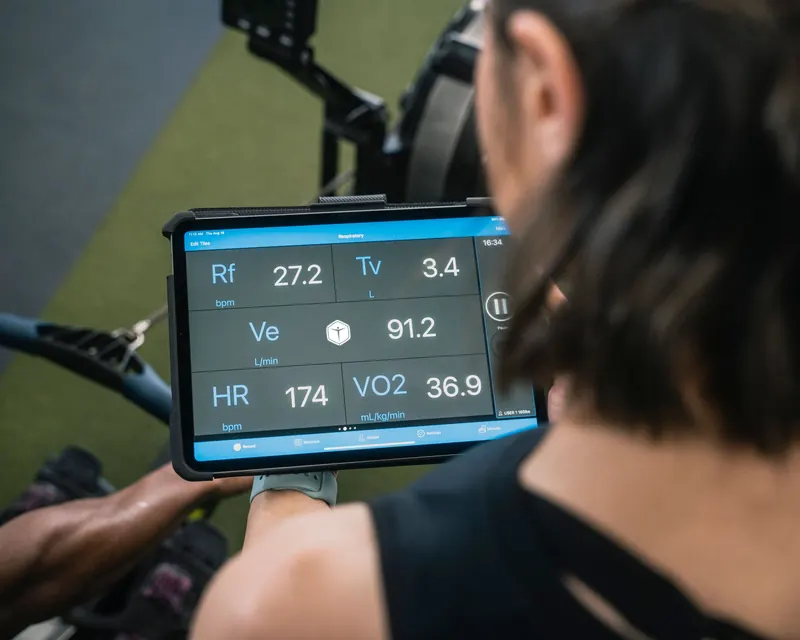
Concept2's machines (the RowErg, BikeErg and SkiErg) share the same PM5 Performance Monitor, and Concept2 runs a free online Logbook where workouts are stored. The usual link between the two is ErgData, Concept2's free phone app. Once set up, every session you row can be saved without writing anything down. This guide explains the parts of the system, how to set up your account and app, how to pair and row, and how to use the Logbook for challenges and the workout of the day. Menus change with firmware updates, so check Concept2's support pages or your manual if a screen looks different from the description here.
The three parts: PM5, ErgData and the online Logbook
The PM5 is the monitor on the machine. It shows pace, watts, stroke rate and distance, and stores recent workouts in its memory. ErgData is a free app for iOS and Android that connects to the PM5 by Bluetooth, shows extra data such as a force curve, and uploads finished workouts. The online Logbook at log.concept2.com is your account and history: totals, personal bests, rankings and challenges.
You do not need all three to row. The PM5 works on its own, and you can type results into the Logbook by hand. ErgData simply removes the manual step. Concept2's own help pages describe other routes too, such as saving to a USB flash drive on PM5 models that support it.
| Part | Where it lives | Main job |
|---|---|---|
| PM5 Performance Monitor | On the machine | Shows and records each workout |
| ErgData app | Your phone or tablet | Pairs with the PM5 and uploads results |
| Online Logbook | log.concept2.com | Stores history, rankings and challenges |
Step 1: create your Logbook account and install ErgData
Go to the Concept2 Logbook website and register with your email address. You will be asked for basic details such as your name, date of birth and weight class, which are used to place results in rankings. You can choose how visible your results are in the privacy settings.
Then install ErgData from the App Store or Google Play and sign in with the same Logbook login. Check that Bluetooth is switched on and that the app has permission to use it.
- 1
Register on the Concept2 Logbook website.
- 2
Set your privacy preferences.
- 3
Install ErgData on your phone.
- 4
Sign in with your Logbook details.
- 5
Allow Bluetooth access when the app asks.
Step 2: pair ErgData with the PM5 and row
Wake the PM5 by pressing a button or pulling the handle. Open ErgData and choose the option to connect; the app searches for nearby monitors and lists them with an ID. Select yours. On most firmware versions the PM5 shows a connection screen and then waits for a workout.
You can set the workout in ErgData, such as a fixed distance, a fixed time or an interval session, or choose Just Row. Row as normal. When the workout ends, ErgData shows a summary and uploads it to the Logbook automatically when your phone has a connection.
Note:Keep your phone in a holder or on the floor beside the machine, never on the rail or seat path. On the RowErg, fit the phone holder and monitor arm as described in your manual so they cannot fall into the moving handle or chain.
Step 3: use the Logbook, challenges and the workout of the day
In the online Logbook you can view every workout, filter by machine type and see seasonal totals. Concept2 also publishes rankings for standard pieces such as 2,000 m, 5,000 m and 30 minutes, if you choose to submit results to them.
Concept2 runs regular challenges listed on its website, often based on total metres in a set period. You join from the Logbook, and synced workouts count automatically. A daily workout of the day is also posted on the Concept2 site and in ErgData, which is handy if you are not sure what to row. Rules and dates change, so read each challenge page before you start.
Useful PM5 settings and tips
The PM5 can display pace per 500 m, watts or other units; you can change the units during a workout on most firmware. If you also want to understand the numbers, our split and watts converter turns one into the other. The damper lever setting is shown on the PM5 as a drag factor in the More Options menu; our damper settings article explains it.
Keep firmware up to date using Concept2 Utility on a computer and a USB cable, as described on Concept2's support pages. If the monitor will not wake or keeps disconnecting, see PM5 not working. If you are still choosing a machine, our best rowing machines guide and smart rowers guide compare app-connected alternatives.
Frequently asked questions
Is the Concept2 Logbook free? Yes, Concept2 offers the online Logbook and the ErgData app free of charge, according to its website.
Why did my workout not upload? The usual causes are being signed in to a different account in ErgData, no internet connection at the end of the session, or the app losing its Bluetooth link mid-workout. Check the account, then open ErgData again with a connection.
Can I add a workout by hand? Yes. The Logbook lets you enter a result manually, for example from the PM5 memory, if it did not sync.
Does the Logbook work with the BikeErg and SkiErg? Yes, all three Concept2 machines use the PM5 and log to the same account, with results separated by machine type.
What you need
- Check price on AmazonAffiliate link
YOSUDA RM11: wooden frame, 32 magnetic levels